
DocsGetting started
Create your account
Sign up with your work email, confirm it, and name your workspace. It takes two minutes and needs no card.
Sign up#
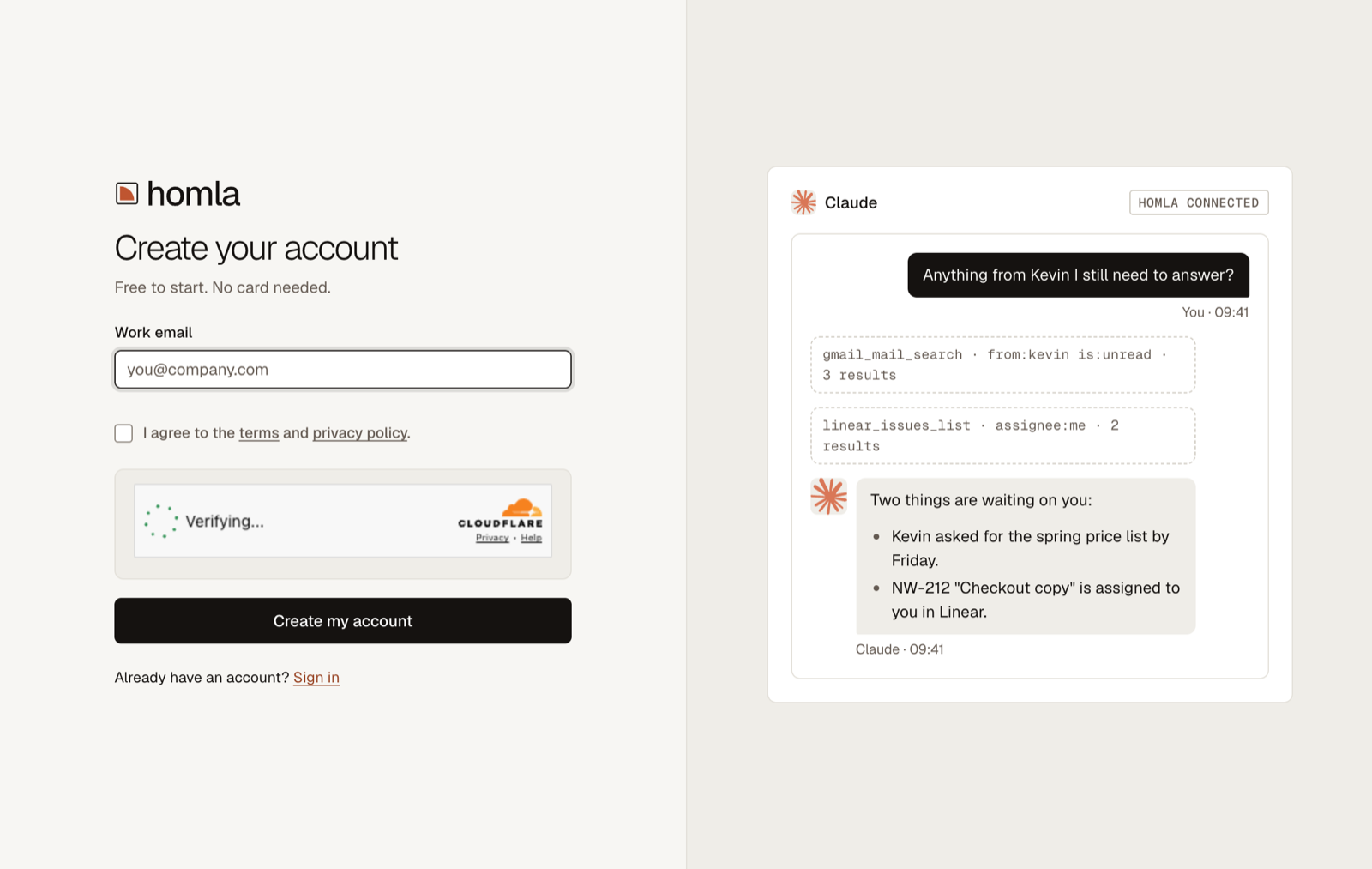
- Open the sign-up pageGo to app.homla.ai/signup. The page says Create your account.
- Enter your work emailType your Work email, tick I agree to the terms and privacy policy., and press Create my account. A short security check runs first.
- Confirm your emailOpen the email Confirm your email for Homla and press Confirm my email. Then press Continue. The link works once, for 24 hours.
- Name your workspaceEnter your Company or team name. Check the Short name: it goes in your connection link, so keep it short. Press Create workspace.
What you get#
- A workspace on the Free plan. No card needed.
- You are its admin, with the Full access role.
- Two built-in roles: Full access and Read-only.
- A welcome email, Welcome to Homla, <name> is ready, with a Continue setup button.
Then the app walks you through setup. See Your first 10 minutes.
Good to know#
- Use a work email. Throwaway inboxes are refused.
- One workspace per sign-up. If you are already in a workspace, you will see You are already in a workspace.
- Already have an account? Signing up again with the same email sends you a normal sign-in link.
- Joining your team? Do not sign up. Ask an admin to invite you, so you land in the right workspace.
Signing in later#
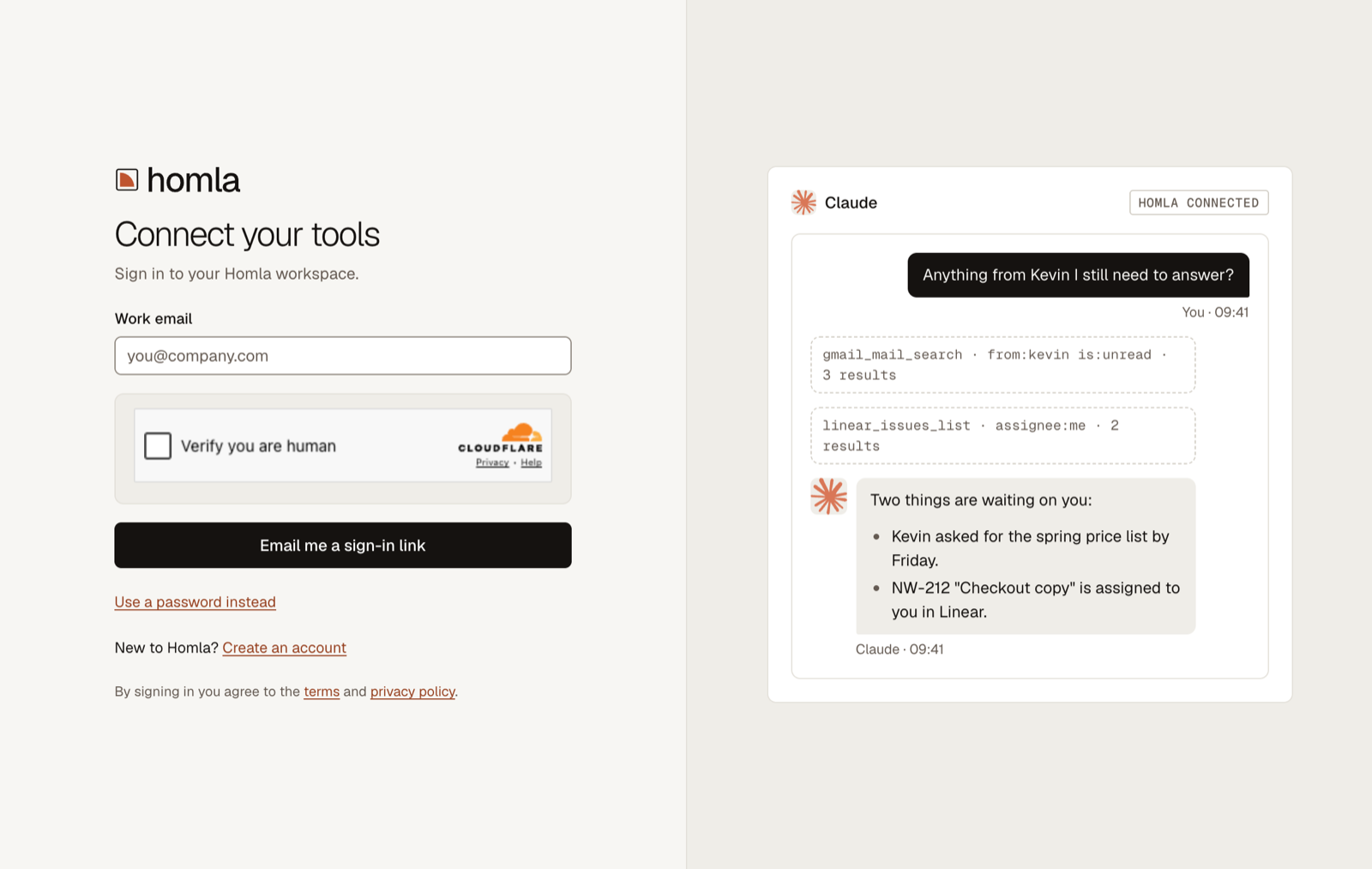
Go to app.homla.ai, enter your Work email and press Email me a sign-in link. The link works once, for 10 minutes. If you set a password, choose Use a password instead.
There is no "Sign in with Google" for your Homla account. Google sign-in in Homla only connects Google tools.